
Collegiate Disc Golf Help
Collegiate Disc Golf events are competitions between university and college teams. Collegiate events are often associated with College Disc Golf, an independent program that provides structure and support for collegiate disc golf clubs and teams. Many collegiate events will have both singles and team rounds, with singles scores contributing in some way to the team total. The guide below contains information to help you navigate the extra steps in a collegiate event.
Sanctioning with the PDGA
When sanctioning your collegiate event with the PDGA be sure to include a note in the sanctioning form that your event is a Collegiate event, so it will be identified properly on the event page and schedule.
If your event will have a singles component, include that in the note too, and the PDGA will create a separate Singles event page at no additional cost.


Events properly marked as a Collegiate event will be designated with a logo on the Event Schedule and the words “Collegiate XC-Tier” on the event results page.
Divisional Eligibility
Collegiate Disc Golf events can use collegiate-specific divisions in Tournament Manager. The PDGA offers Mixed Collegiate Divisions 1, 2, and 3 (MC1, MC2, and MC3) and Women's Collegiate Divisions 1, 2, and 3 (FC1, FC2, and FC3). These are amateur-class divisions, but unlike other amateur divisions, the PDGA does not restrict professional-class players from competing in these divisions. A 970-rated professional, who would normally be ineligible for MA1, is eligible for MC1. Team and player eligibility for collegiate events is determined by independent organizations, such as College Disc Golf. Players are expected to understand and follow those eligibility standards.
Registration in Disc Golf Scene
If you are running registration on Disc Golf Scene, we recommend you set up registration for the Team event and link DGS to the PDGA Team event page. Every team member must have exactly the same team name (no extra spaces or different capitalizations, for example), so it’s easiest to get all team members registered properly by setting up registration as “Entry fees are per-Team”. It is possible to set up your DGS as “Entry fees are per-Player”, but you run the risk of players entering different team names, and you will have to manually fix the team names in order for Tournament Manager to recognize them properly. It is also possible to set up DGS for the Singles event, in which case some of the steps later in this document will be reversed.

Disc Golf Scene offers Collegiate-specific divisions.
In the General Info -> Overview section, set the participants to "Collegiate". This makes three changes to your event:
- The header will display the event as a "PDGA Collegiate XC-tier".
- Players can search for Participant Type and find your event.
- Registration will ask for a "School / Team Name" instead of "Team Name".

Set up Disc Golf Scene to show this event is for Collegiate participants.
Setting up the Team Event Page
The Team page should include every collegiate player participating as well as their specific school/team name. If any particular school has more than one team, designate that with “ – A”, “ – B”, etc. Example:
- XYZ University - A
- XYZ University - B
When done, the Team page should display every player with their team name, grouped together by team.

The Team event page will have the players grouped together as a team.
Setting up the Singles Event Page
After all teams have registered and are entered in the Team event, go to the Export page in the Team event’s Tournament Manager export the data using the “Full Results” option. This will download a CSV file with the following fields: Division, FirstName, LastName, PDGANum, & Team Name.
Copy the data in those columns (including column headers) and paste the data in the Upload page in the Singles event Tournament Manager.
The Singles event page should now display all the same players and their teams as the Team event page does.
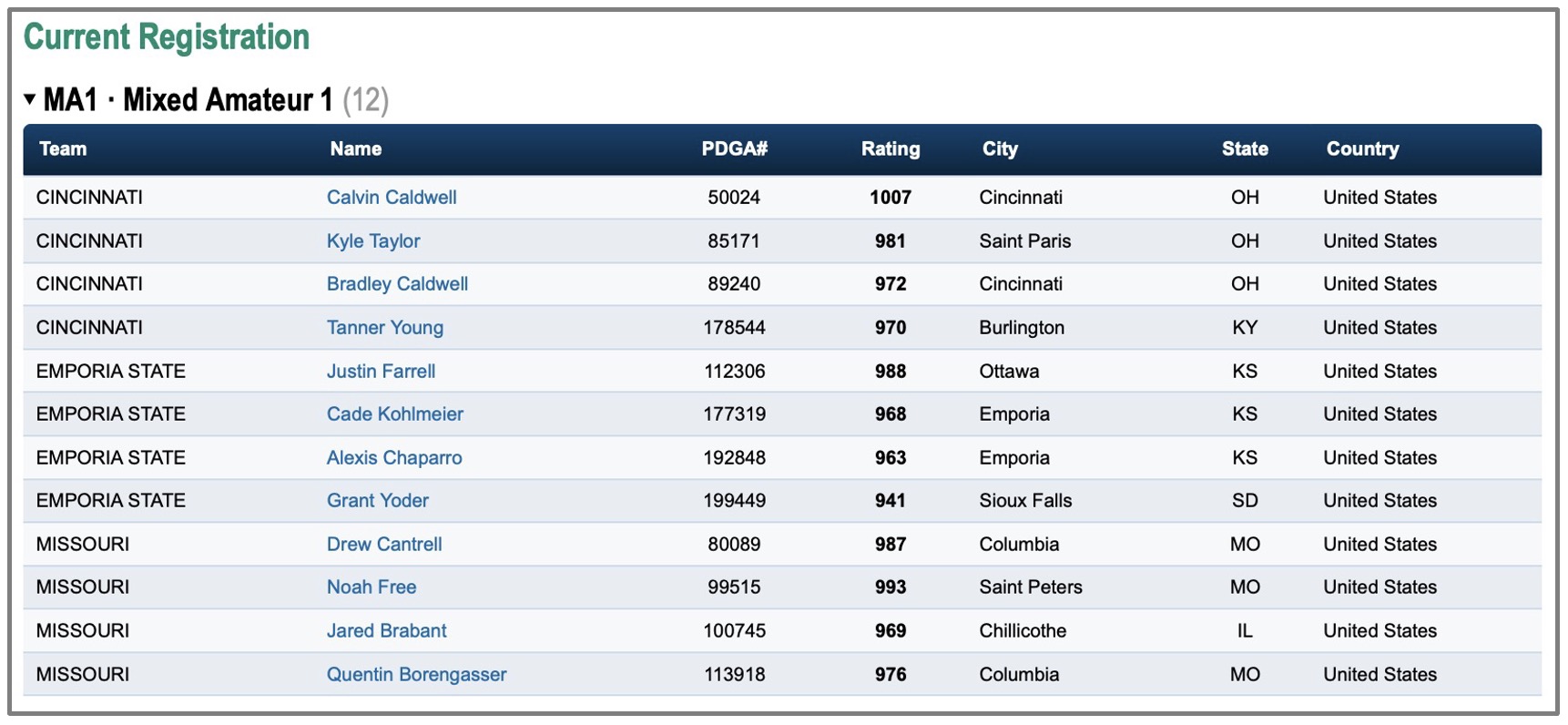
The Singles event page will show each player’s team name but have the players separated as individuals.
If any player from the Team page does not participate in Singles, manually remove them from the Players page in Tournament Manager for the Singles event.
Creating Groups and Starting Assignments
For the Team event, use Tournament Central to create groups and assign starting holes/tee times. To access Tournament Central, click the link at the bottom center of any page in Tournament Manager.
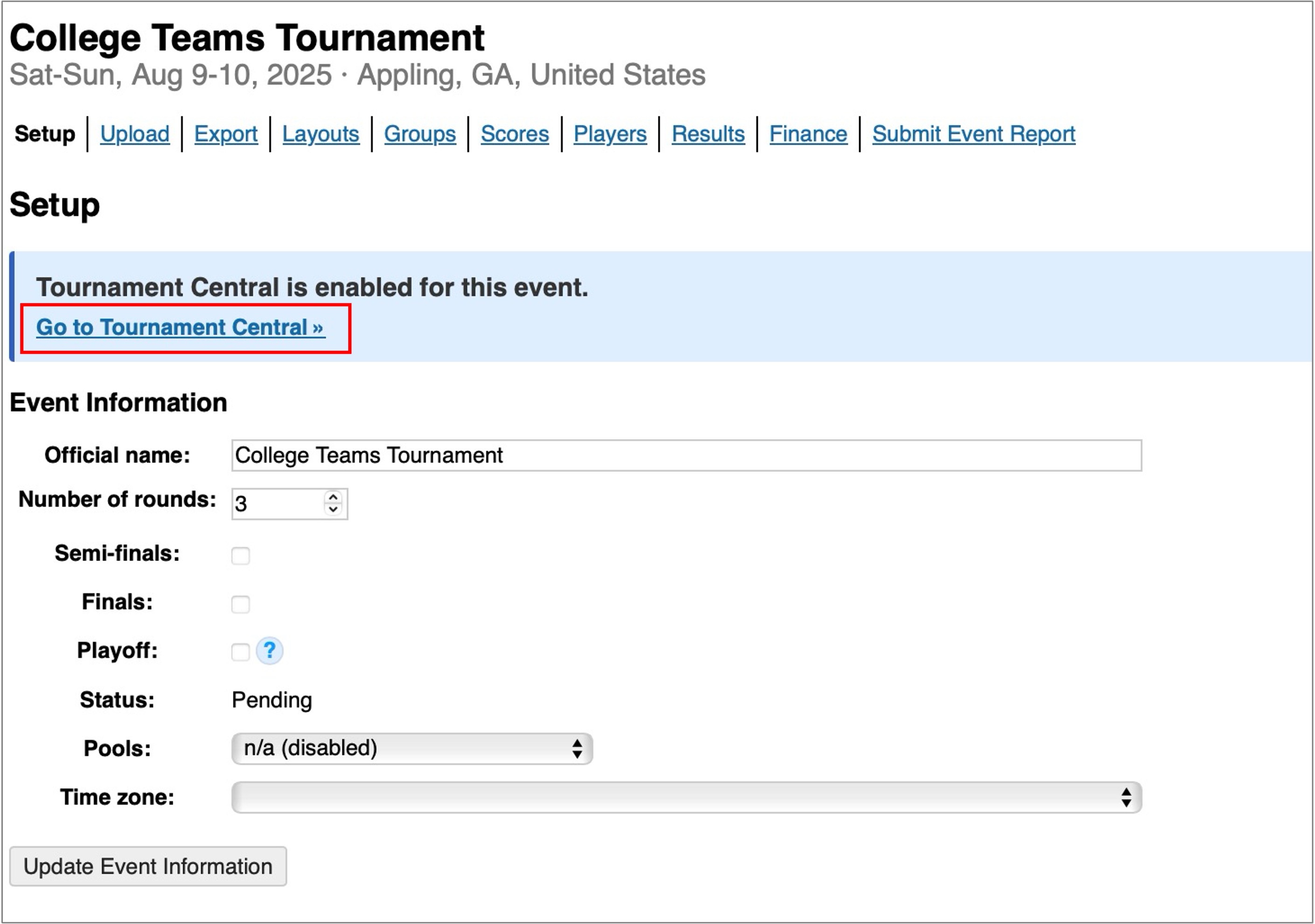
Use Tournament Central for Groups and Starting Assignments.
When using Tournament Central for the Team event, all players on a team are grouped together as a team for starting assignments. You can drag the entire team to a different hole/tee-time and it will move all players together. Tournament Manager does not recognize Teams and will not necessarily group teammates together on a card, so we do not recommend using it for teams group assignments.

Team members are grouped together in Tournament Central when creating starting assignments.
Team Scoring
The Team event results page will display all rounds of play, including singles, that will be used to calculate the final ranking of the teams.
For the Team page, the scores must be identical for each member of the same team. For team-play rounds where the players are using PDGA Digital Scorecard, the scores will automatically be applied to all members.
For the singles round on the Team page (most commonly the average of the individual scores), the scores need to be manually entered into Tournament Manager’s Scores page. You will need to calculate the team score for the singles round manually. You can do this with a spreadsheet, pencil and paper, or however else you want. To calculate with a spreadsheet, export the singles results from the Singles’ Tournament Manager and perform the appropriate calculations to determine the team score for each team. Go to the Team event’s Scores page in TM and enter the same team score for every player on each team.

When manually entering scores on the Teams page, all players on a team must have the same score.
Singles Scoring
The Singles page should have the raw singles score(s) for each player.
The Singles ranking will be by best score low-to-high across all players, regardless of what Team they are on.
If players are using PDGA Digital Scorecard to keep score for the singles round, make sure they are aware that the access code for the Singles rounds will be different than the Team rounds.
Submitting the Event Report
The event will only owe post-event fees based on the properly completed Team report. When you submit the report for the Singles event, you can ignore the post-event fees. The PDGA Office will clear the event charges for the Singles event.
If you need any assistance with the above, please reach out to [email protected]